
Spivi 2.0: What else is new?
Hello everybody!
In addition to the new look and feel of Spivi 2.0, there are some additional operational changes that we would like to make you aware of. These changes have been made to provide you with a better overall experience for both your instructors and members!
System Settings:
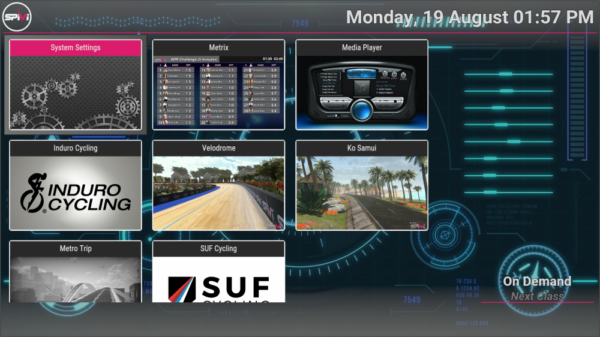
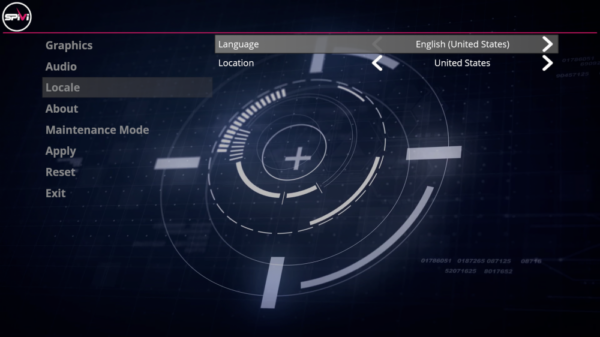
The newly added System Settings menu will now allow you to modify the graphics properties, audio volumes, as well as the language of the system. You can also access the Maintenance Mode screen via the System Settings to pair/unpair your devices.
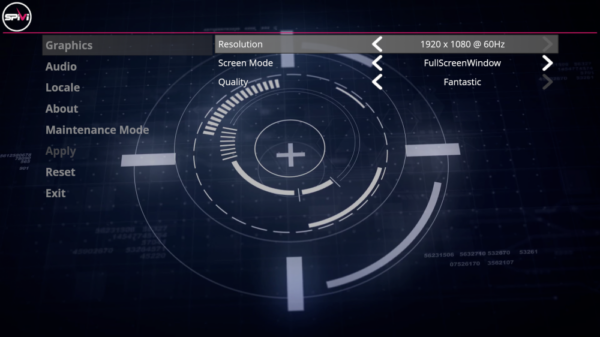
Graphics:
In the Graphics portion of the System Settings menu, you can configure the screen resolution, the screen mode, and the quality.
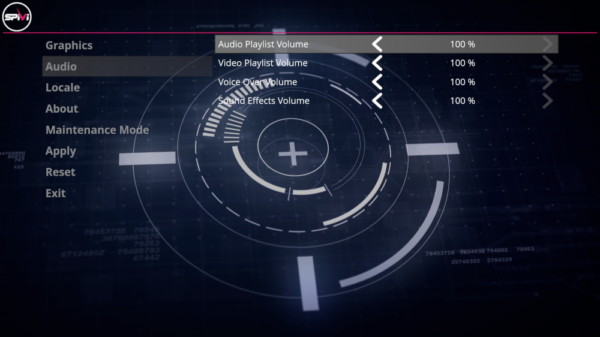
Audio:
In the Audio portion of the System Settings menu, you can configure the individual volume levels of the audio playlist, video playlist, voice-over, and sound effect volumes.
Language:
In the Language portion of the System Settings menu, you can configure the language of the system. The available languages are: English, French, Portuguese, Spanish, Russian, Deutsch, and Italian.
Maintenance Mode:
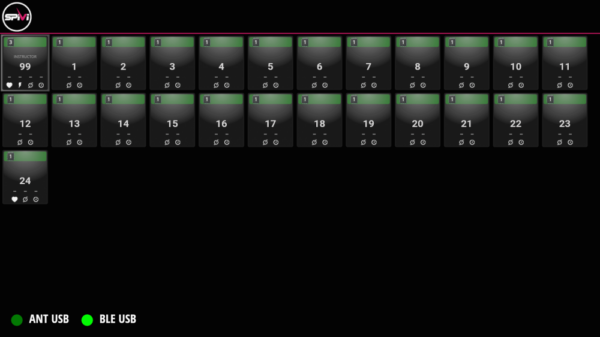
Maintenance mode will now be available in the System Settings menu. Please note that pressing and holding the blue and red buttons on the Xbox controller will no longer activate the Maintenance Mode screen.
Workout Operation Mode:
You may be used to seeing the Custom/Structured Workout Mode selection screen once you select one of the available workout scenes. In Spivi 2.0, this selection screen has been replaced with our new Workout Configuration menu.
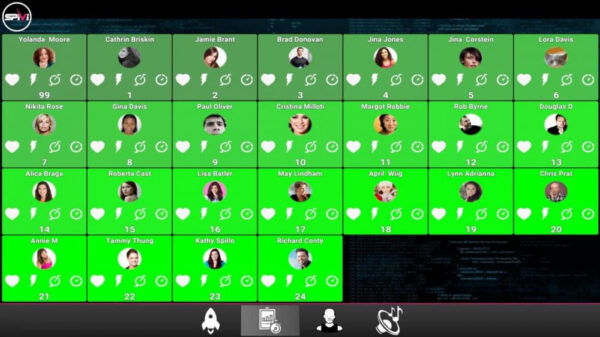
The new Workout Configuration Menu allows instructors to configure the workout type, virtual instructor, as well as the virtual DJ before they start the class.
Here is a list of what each of these icons do (from left to right):
Rocket: Selecting the rocket icon will launch the workout. You should only select this once you have already selected the appropriate workout type, virtual instructor, and virtual DJ.
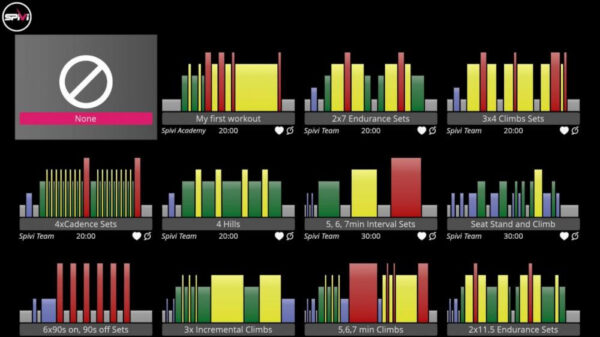
Workout Type: If you plan to run a custom workout, with a live instructor that plans to control the class in real-time, please select the NONE option. Otherwise, you can select one of the structured workouts from the list of available workouts. Please note, you can create your own structured workout by using the Workout Creator Tool.
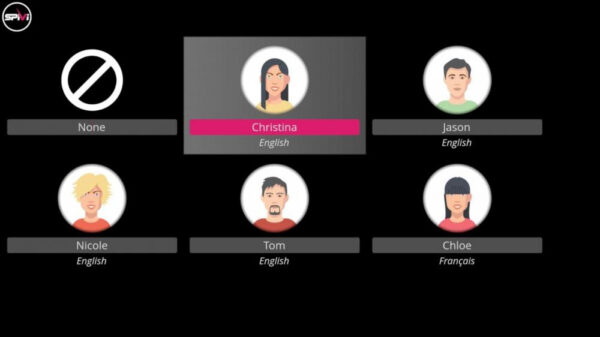
Virtual Instructor:
Highlight the Virtual Instructor icon and press the start button to view the list of available instructors. These virtual instructors will provide feedback in real-time based on each member’s actual performance. They work best when used in unison with a structured workout.
Virtual DJ:
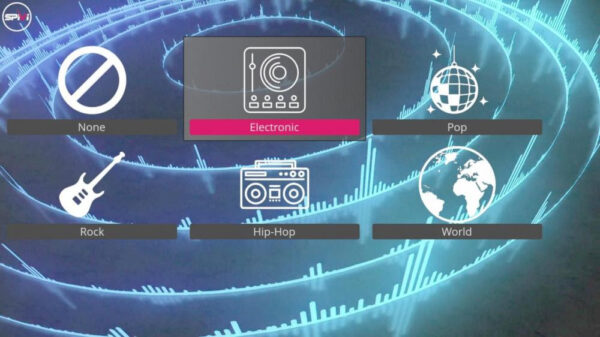
The Virtual DJ option allows you to play your favorite genre of music during your workout. The songs that are played will be based on the current intensity zone of your workout. This means that a higher tempo song may be played while in a high intensity zone during the workout. Highlight one of the available genres, and press the start button to confirm.
Club Usage Statistics:
We have now implemented a new way to view your entire club’s performance data. You will now be able to view data such as your entire club’s average workout duration, how many classes per day are ran, the average number of participants, etc. To begin, please log into Spivi.com with the owner’s account, and navigate to My Studio -> Club Analytics.
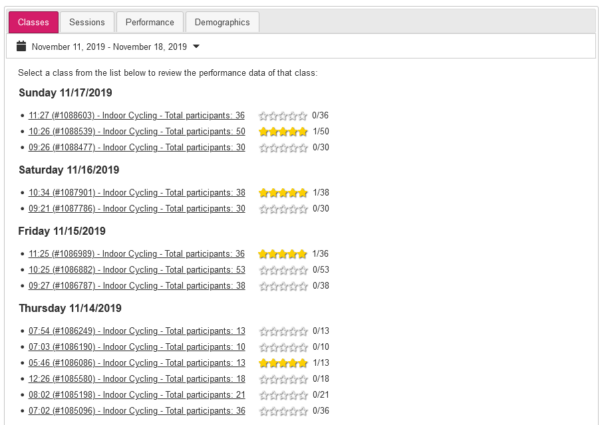
Classes: You will notice that your Class Summary Reports are now stored here. You will also be able to filter through which dates you would like to view the class summary reports of, for example, Last 7 days, This Month, Last Month, and Custom Range.
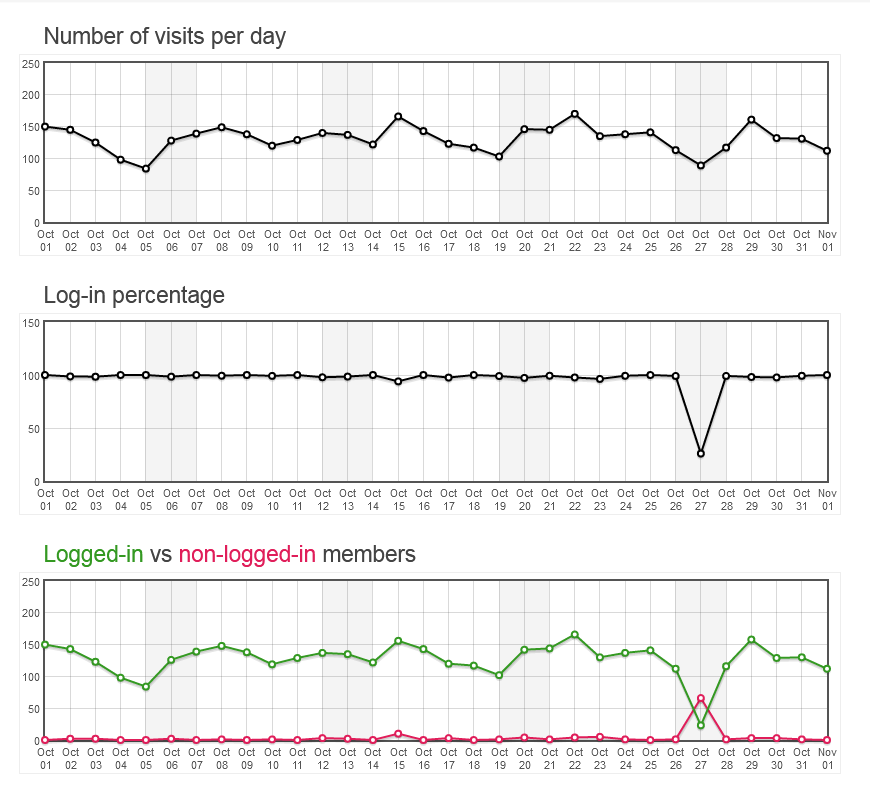
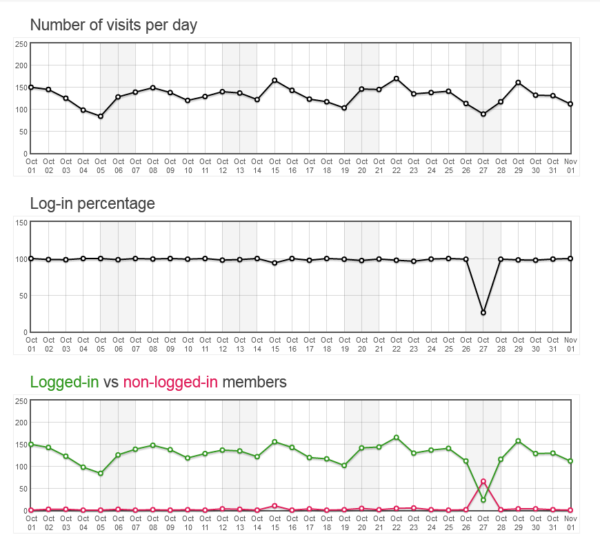
Sessions: The sessions tab will allow you to view the charts for the following data:
- Average workout duration
- Total workout duration per day
- Classes per day
- Average participants count per class
- Number of visits
- Log-in percentage
- Number of users who did not log-in
Performance: The performance tab will allow you to view your club’s performance charts for the following data:
- Total calories burned
- Total distance
- Average RPM
- Average Power
- Max RPM
- Max Power
- Total Spivi Points
- Max Speed
- Average Power (W/Kg)
- Average Power (FTP)
- Total WPP
Demographics: The demographics tab will allow you to view the charts for the following data:
- % of female participants
- % of male participants
- Average age of female participants
- Average age of male participants
- Average age of all participants
What we’ve discarded and why:
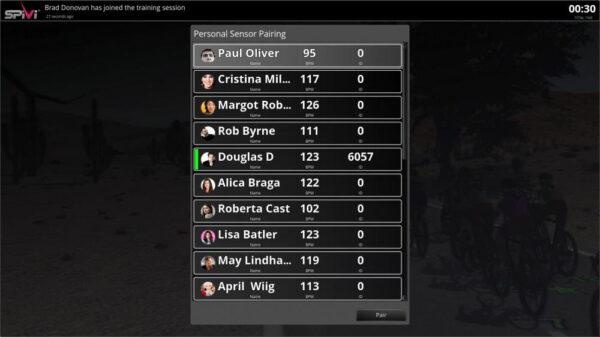
In Spivi 2.0, we have decided to discard the Heart Rate Pairing Wizard. Normally, you would be able to enter the hidden Heart Rate Pairing wizard by pressing and holding the blue and red buttons on the Xbox controller for 2-3 seconds while in an active session.
However, because there are many different methods of pairing a Heart Rate monitor to a user’s account, the HR pairing wizard was deemed no longer necessary. To learn more about the different methods of pairing a HR monitor, please visit https://www.spivi.com/academy/pairing-heart-rate-monitor-to-spivi/
In the meantime, here is a video that describes the new way to navigate the system if you would like to get a head start! Please feel free to share with your staff and instructors so they can be ready for when the update occurs.